Account Request Instructions
- Select the appropriate link for your request:
(1) Regular Link: Select for new accounts, updating existing accounts, and account disengagements for Global FTS SP and Ent accounts.
(2) US-Federal Link: Select for new accounts, updating existing accounts, and account disengagements for Federal and Public Sector accounts.
- All fields within each link (Regular and Federal) are MANDATORY and must be completed in order to submit the account request.
- Requests that are submitted with incomplete information will not be approved and will be sent back to the requestor for more information. Please note that this will cause additional delays in processing.
- Contracts will be automatically validated (to ensure they do not reside in another portfolio) after clicking on the "Submit" button
- Contract numers MUST BE COMMA SEPARATED in order to Add Contract(s), Delete Contract(s), to modify routing in the Existing Contract field
- Business Operations Policies apply to all AS/HTTS Theatres for all account requests.
- Business Operations may deny any request submitted that is not complete with previously approved contract or account specific information.
This means that Business Operations has a list of the approved contracts and/or account changes and are aware of the changes to the accounts.
If Business Operations is not aware of changes to an account, follow up action may be required as specified by Business Operations before
changes are approved.
- Requests will be responded to within 48 hours during normal business hours. Acceptable requests which have all of the completed template information will be completed if Business Operations has approved the changes. If there are any problems or further approvals are required, this will impact the time it takes to complete the request if the request
is approved by Business Operations. If a request is not approved by Business Operations, the requestor will be contacted with more information based
on their denied request.
- Portfolio Numbers can be found using the Cisco Service Contract Center Tool or Portfolio Tracker Tool
Use the tool(s) to search by contract to see what C3 Portfolio Number is assigned to that specific contract. If the contract is in a Portfolio, you will see
a box at the bottom right of the page (of CSCC) with a Usage Type and Portfolio Number. If you do not see a Portfolio Number for the contract you are searching,
this indicates that the contract is not in a Portfolio.
How to use Table
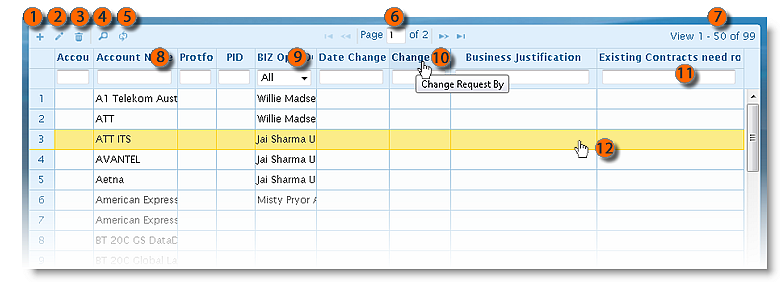
- Add New
- Edit
- Delete
- Search
- Refresh
- Pagination
- 50 per page of total
- Column Sorting
- Dropdown Filter
- Mouseover Alternate Text
- Column Search
- Double Click to open the edit window
Business Operation Instructions
- Queue- Requests Pending Approval
- Approved- Approved Requests
- Denied-Not Approved
- Project Manager-Account Requires PM assistance
- Requester Pending-Require additional information form user before processing
- Generic Peding-Can be used as temporary place holder for requests or Segment owners pending
- Biz Ops Pending-Require additional information from biz before processing
- Processed-Complete, waiting for the user / processor to close
- Closed-Closed Requests
- Notes Updated-Timestamp when the notes, last got updated
- Request Updated-Timestamp when the request, last got updated
